GoHighLevel CRM Setup: Step-by-Step Configuration Guide for Agencies (2026)
One of the biggest mistakes agencies make with GoHighLevel is jumping straight into building funnels and running ads before their CRM is properly configured. When leads start coming in and the system is not set up to handle them — no pipeline stages, no custom fields, no automation triggers, no follow-up sequences — those leads quietly disappear into an unorganised contact list and convert at only a fraction of their potential.
GoHighLevel CRM setup done correctly from day one changes everything. It creates a system where every lead is captured, tagged, tracked through a clear sales process, and automatically followed up — without you manually managing any of it.
In this guide, I am going to walk you through the complete GoHighLevel CRM setup process. This is the exact seven-step sequence our team follows when we configure CRM systems for agencies and small businesses. We have completed 200+ GoHighLevel CRM setups across the US and UK, and this guide covers every step we would take when building yours.
If you are brand new to the platform and want to understand the CRM at a higher level first, start with our GoHighLevel CRM tutorial before continuing here.
What Is GoHighLevel CRM?
The GoHighLevel CRM is the central hub of the entire platform. It stores every contact your business interacts with — leads, prospects, active clients, and past customers — and connects their information directly to your pipelines, automations, conversations, and calendar.
Unlike standalone CRM tools, GoHighLevel's CRM is deeply integrated with the rest of the platform. When a lead submits a form, they appear in your CRM automatically. When they book a call, your calendar updates and a workflow fires. When you close a deal, the pipeline stage moves and an onboarding sequence can begin — all without you doing anything manually.
That level of connectivity is only possible when the CRM is configured correctly from the start. Here is a way to do it.
How to Set Up GoHighLevel CRM: 7 Steps
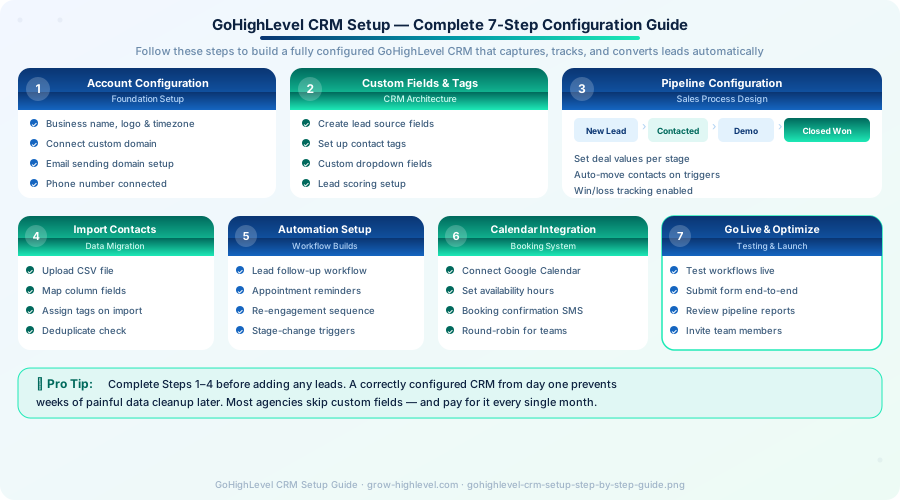
Step 1 — Set Up Your Account Settings
Before adding a single contact, spend 20–30 minutes inside Settings to get the foundation right. These configurations affect how the entire platform behaves, so changing them later can cause problems.
The key areas to set up first are your business name, logo, and time zone — these appear throughout the platform in client-facing communications and automations. Your time zone in particular affects when scheduled workflows fire, so an incorrect setting can mean follow-up emails are sent at the wrong time.
Connect your sending email domain from inside the Email Services section. This is the domain your automated emails will send from and it directly affects your deliverability. A custom sending domain tells email providers your messages are legitimate, which reduces the chance of landing in spam folders.
Connect your phone number through the Phone Numbers section. GoHighLevel works with LeadConnector or Twilio for SMS capabilities. Your phone number is required for any automation that includes text messages.
Finally, add any team members who need platform access. Assign appropriate permissions based on their role so they only see what they need.
Step 2 — Create Custom Fields and Tags
This is the step most agencies skip — and it causes data chaos within a few weeks. Custom fields and tags are how you store structured information about each contact beyond the basic name, email, and phone.
Go to Settings → Custom Fields and create fields for any information that matters to your sales process. Common examples include the contact's business type, monthly ad spend, number of employees, service interest, or referral source. These fields allow you to segment your contacts precisely and trigger automations based on specific data points.
Tags work differently — they are labels you apply to contacts to mark their status, behaviour, or category. Set up tags like Facebook Lead, Google Ad, Hot Prospect, Referral, Existing Client, and Cold Lead before you start importing contacts. Being consistent with your tagging system from day one makes filtering, reporting, and automation targeting far more effective.
Step 3 — Create Your Sales Pipeline
Your pipeline is a visual board that shows where each active lead or prospect sits in your sales process. It is one of the most powerful features in the GoHighLevel CRM setup and one of the most commonly under-used.
Go to Pipelines and create your main pipeline. Name it clearly — Agency Sales Pipeline, Client Acquisition, or whatever fits your business. Then add the stages that match your actual sales flow.
A typical agency pipeline looks like this:
Stage Description New Lead Just entered the system Contacted Initial response sent or received Demo Booked Call scheduled in calendar Proposal Sent Quote or proposal delivered Negotiation Active conversation in progress Closed Won Signed and active Closed Lost Did not convert — lost reason recorded
Set a monetary value for each deal when it enters the pipeline. This gives you a live forecast of potential revenue in your pipeline at any point — which is essential for planning capacity and projecting income.
For each pipeline stage, you can configure automations to fire automatically when a contact enters that stage. This is where GoHighLevel CRM configuration starts to generate real time savings.
Step 4 — Add Your Contacts via Import
If you are migrating from another CRM, spreadsheet, or platform, this step brings your existing data into GoHighLevel cleanly.
Go to Contacts → Import and upload a CSV file containing your contact records. GoHighLevel walks you through mapping each column from your spreadsheet to the correct field in the CRM — name, email, phone, address, and any custom fields you created in Step 2.
Before importing, clean up your data. Remove duplicate entries, standardise formatting (especially phone numbers — GoHighLevel requires them in a specific format), and ensure every contact has at least an email address or phone number, otherwise automations cannot reach them.
During the import, you can apply tags in bulk to the entire imported list. If you are importing a list of previous leads, tag them all as Previous Lead so you can treat them differently in automations than new incoming contacts.
Step 5 — Create Automation Workflows
With your CRM structure in place, you are ready to build the automation workflows that make the system run on its own. These workflows connect directly to your CRM pipeline and contacts.
The minimum automation setup for any GoHighLevel CRM for small business or agency includes three workflows.
The first is a lead follow-up sequence that fires the moment a new contact enters the system via a form submission. It sends an immediate welcome email, waits one hour, then sends an SMS follow-up. If the contact replies, the workflow moves them to the Contacted stage automatically.
The second is an appointment reminder sequence connected to your calendar. When a contact books a call, the workflow sends a confirmation email immediately, a reminder SMS 24 hours before, and a final reminder one hour before the call. No-display prices drop substantially with this collection running.
The third is a re-engagement workflow for leads that do not respond to the initial follow-up sequence. After three days of silence, it fires a different-angle SMS. Send a follow-up email after seven days. Contacts who still do not respond are tagged as Cold Lead and moved to a separate segment for future campaigns.
For a deeper walk-through of building these specific workflows, read our GoHighLevel automation guide.
Step 6 — Configure Your Calendar
GoHighLevel includes a built-in booking calendar that connects directly to your CRM — so when a lead books a call, their contact record updates and your follow-up automations can trigger based on the appointment.
Go to Calendars → Create Calendar and configure your availability, meeting duration, buffer time between calls, and confirmation messages. Connect your Google or Outlook calendar to save you double-booking.
Once your calendar is live, you can embed it in your funnel, add the booking link to your automation SMS messages, and share it directly with contacts via conversation. Clients book on their own time, your calendar fills up, and the CRM tracks every appointment against the right contact record automatically.
Step 7 — Test Your Setup and Launch Live
Before sending traffic or leads into your newly configured CRM, run a complete end-to-end test. Submit a form yourself as a test lead and watch what happens — does the contact appear in the right pipeline stage? Is the welcome email being delivered? Does the SMS follow-up fire after the correct delay?
Check each workflow trigger by walking through each scenario manually. Confirm that pipeline stage changes move contacts correctly. Verify that your calendar booking confirmation works and connects to the right automation.
Once the test is clean, your GoHighLevel CRM configuration is ready for live use. Add team members with their correct access permissions, brief them on the pipeline and workflow structure, and start bringing in leads.
Common GoHighLevel CRM Setup Errors to Avoid
Most CRM setup problems we encounter when helping agencies fall into a few predictable categories.
Setting up pipelines without automation means the pipeline is just a visual board — contacts sit in stages without anything happening to move the deal forward. Stages should have at least one automation attached.
Skipping custom fields means all your contacts look identical and you cannot segment them for targeted campaigns. Spend the time on Step 2 and it pays off every month.
Importing contacts without cleaning the data first creates a CRM full of duplicate records and incorrectly formatted numbers that break SMS automations. Clean your data before importing it.
Building workflows before the pipeline is configured means triggers have no stages to reference. Always complete Steps 1–3 before building automations.
Need Help Getting Your CRM Set Up?
A successfully configured GoHighLevel CRM is one of the highest-leverage matters you may construct to your agency or business. But if the process feels overwhelming, or if you want it done right without spending weeks working through it yourself, our team at Grow HighLevel can handle the entire setup for you.
We offer a complete done-for-you CRM setup service — including pipeline configuration, custom fields, automation workflows, calendar integration, and contact import — delivered and tested within 5–10 business days.
Explore our GoHighLevel pricing options to see which plan aligns with your agency size, or hire a GoHighLevel expert from our team if you want a specialist assigned to your project. You can also book a free strategy call and we will assess your current setup and show you exactly what needs to be set up.
Related Articles:
GoHighLevel CRM Tutorial: Complete Setup Guide for Agencies (2026)
GoHighLevel Automation: Complete Workflow Setup Guide for Agencies (2026)
© 2026 Grow HighLevel. Not affiliated with GoHighLevel™.
