GoHighLevel CRM Tutorial: Complete Setup Guide for Agencies (2026)
If you are running a marketing agency or managing clients, you already know how painful it is to juggle leads across five different tools. A contact comes in through Facebook, you note it down in a spreadsheet, send an email from Gmail, follow up via a separate SMS tool, and try to remember where that lead was in your sales process.
GoHighLevel was built to fix exactly that problem.
In this GoHighLevel CRM tutorial, I am going to walk you through everything you need to set up and use the GHL CRM properly — from adding contacts and building pipelines to automating follow-ups that run 24/7 without any manual effort from your side.
Before we dive in, if you are new to GoHighLevel and want to understand what it is first, start here: What is GoHighLevel? Complete 2026 Guide for Agencies
Already familiar with the basics? Then let us get into the CRM.
What does GoHighLevel CRM mean?
The GoHighLevel CRM is the core of the entire platform. It is where every lead, contact, and client lives. Unlike standalone CRMs like HubSpot or Salesforce — which charge thousands per month and only do CRM — GoHighLevel's CRM is connected directly to your funnels, emails, SMS, automation workflows, and calendar.
When a lead fills out your form, they automatically appear in your CRM. When they reply to your SMS, the conversation is there. When they book a call, your CRM updates. What does GoHighLevel CRM mean?
This is what makes GoHighLevel's CRM uniquely powerful for agencies — it is not just a place to store contacts. It is a complete lead management machine.
Step 1 — Configure Your CRM Settings
Before you start adding contacts, spend 10 minutes setting up your CRM correctly. This saves complications later.
Go to Settings in your GoHighLevel account and fill in:
Custom Fields — Add any extra data fields you want to collect beyond name, email, and phone. For example: business type, monthly ad spend, number of locations.
Tags — Create tags you will use to segment leads: Hot Lead, Referral, Facebook Ad, Google, Organic, VIP Client.
Lost Reasons — Set up reasons why deals fall through: Too Expensive, No Budget, Not Interested, Wrong Timing. This statistics facilitates you enhance your income method over time.
Lead Sources — Define where your leads come from: Facebook Ads, Google Ads, Instagram, Referral, Organic.
Setting these up now means every contact that comes in will be properly labelled and segmented from day one.
Step 2 — Add and Manage Contacts
Contacts are the people inside your CRM. Every lead, prospect, and client is stored as a contact with their full history — every message sent, call made, email opened, page visited, and note written.
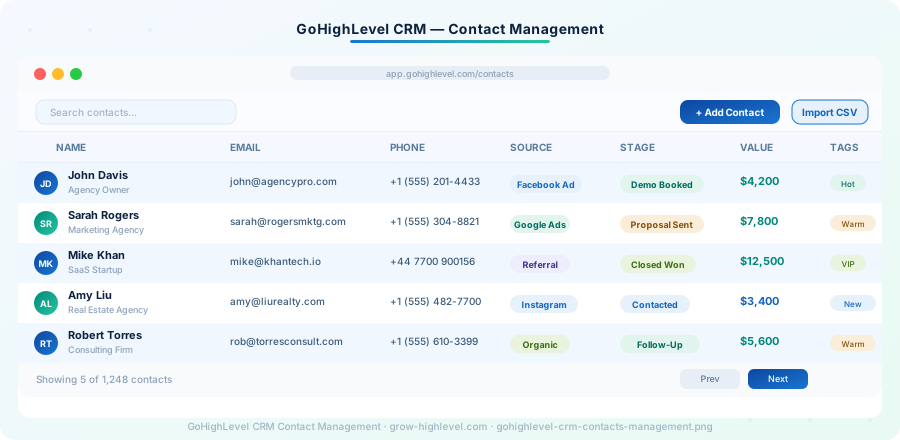
There are three ways to add contacts:
Manual entry: Go to Contacts → click "Add Contact" → fill in name, email, phone, source, and any custom fields → Save.
CSV import: If you have an existing list, go to Contacts → Import → upload your spreadsheet → match columns to GHL fields → Import. This brings in hundreds of contacts in minutes.
Automatic via funnels: When someone submits a form on your GoHighLevel landing page, they are automatically created as a contact. This is the most powerful method — no manual work, no missed leads.
Once a contact is in your CRM, you can see their entire timeline: every email, SMS, conversation, note, task, and appointment in a single place. You in no way need to appearance through email chains or sticky notes again.
Pro tip: Use tags aggressively. Tag every contact with their source, their status, and their interest level. Tags let you trigger automations, filter lists, and send targeted campaigns to the right people.
Step 3 — Create Your CRM Pipeline
A pipeline is a visual board — like a Kanban board — that shows where each lead is in your sales process. This is one of the most powerful features of the GoHighLevel CRM.
Go to Pipelines → Create Pipeline → Name it something clear like "Agency Sales Pipeline."
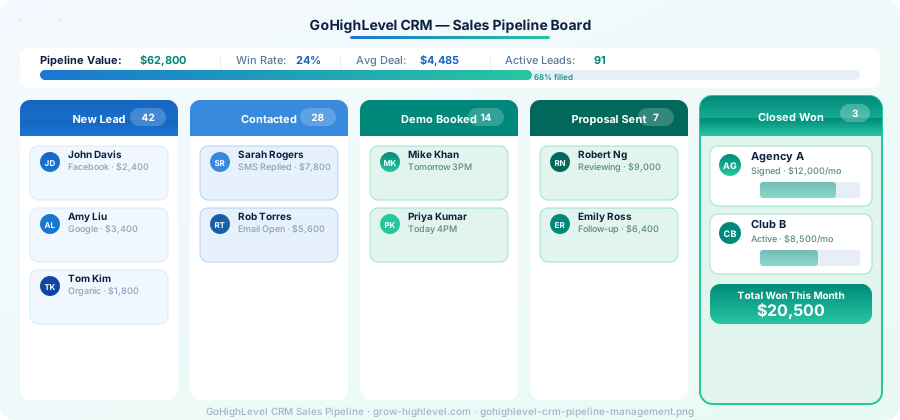
Here is a simple but effective pipeline structure for agencies:
New Lead → Contacted → Demo Booked → Proposal Sent → Negotiation → Closed Won → Closed Lost
Each of those is a level on your pipeline. Every contact you are actively working with gets a card on this board. When they move forward in your sales process, you drag their card to the next stage.
More importantly, you can set up automations that move contacts between stages automatically. For example:
Lead books a call → automatically moves to "Demo Booked"
Lead does not reply in 3 days → gets flagged and a follow-up SMS fires
Lead signs the contract → automatically moves to "Closed Won" and triggers onboarding workflow
Your pipeline gives you a real-time view of every active opportunity and exactly how much revenue is in progress. Agencies using this properly rarely let leads fall through the cracks.
Step 4 — Set Up CRM Automation
This is where the GoHighLevel CRM becomes truly different from any other tool. Automation lets your CRM take action on your behalf — sending messages, moving contacts, booking calls, and following up — all without you doing anything manually.
Go to Automation → and click "Create Workflow".
A basic CRM lead follow-up workflow looks like this:
Trigger: New contact added to CRM via form
Action: Send an instant welcome email
Wait: 30 minutes
Action: Send SMS — "Hi [name], I simply despatched you an email. Would love to connect — what time works for a quick call?"
Wait for 24 hours
If/Else: Did they reply? → Yes: move to "Contacted" stage → No: send follow-up email
Wait: 48 hours
If/Else: Still no reply? → Yes: send final SMS → No: move to "Contacted"
This entire sequence runs on autopilot the moment a lead enters your system. You could be sleeping, on holiday, or with a client — your CRM is still following up.
For agencies, I recommend building at least three workflows from day one:
Lead follow-up sequence (email + SMS combo)
Appointment reminder sequence (24 hours and 1 hour before)
Post-call follow-up sequence (send proposal link, resources, next steps)
Want a deeper dive into workflows? Read our full guide: How to Use GoHighLevel: Complete Beginner's Tutorial (2026)
Step 5 — Use the Conversations Inbox
Every reply your leads send — whether it is via email, SMS, Facebook Messenger, Instagram DM, or live chat — all lands in one place: the Conversations inbox.
Go to Conversations in the left sidebar.
Here, you can:
See every active conversation in one unified inbox
Reply to leads via email or SMS from the same screen
Assign conversations to specific team members
Add inner notes seen most effective for your team
Set follow-up reminders on any conversation
The Conversations inbox means you never miss a reply. It replaces your email inbox, your SMS app, and your social media DMs — everything in one place.
Step 6 — Track CRM Performance with Reports
Knowing what is working is just as important as doing the work. GoHighLevel's reporting shows you exactly how your CRM is performing.
Go to Reports → CRM Reports.
Key metrics to track weekly:
Leads added — How many new contacts entered your CRM this week?
Pipeline value — What is the total dollar value of active opportunities?
Stage conversion rates — What percentage of leads move from New Lead to Demo Booked? From Demo to Closed?
Lead source performance — Which source brings the highest quality leads?
Email open and click rates — Are your follow-up emails actually working?
These numbers tell you where to improve. If 80% of leads go cold after the first email, your follow-up sequence needs work. If leads are not converting from Demo to Proposal, your demo call needs refinement.
Why Agencies Choose GoHighLevel CRM Over HubSpot
The most common question I get is: why not just use HubSpot or Salesforce?
Here is the honest answer. HubSpot is a effective CRM, however for a advertising organisation with 5–50 clients, it turns into outrageously expensive. The Marketing Hub alone starts at $800/month — and that is before adding SMS, white-label capabilities, or sub-accounts.
GoHighLevel gives you the CRM plus funnels, email marketing, SMS, automation, reputation management, and white-label SaaS — all for $97–$297/month. For agencies, it is not even close.
See what our clients say about the results they have achieved: Client Testimonials
Need Help Setting Up Your GoHighLevel CRM?
Setting up your GoHighLevel CRM the right way from day one saves you weeks of frustration and lost leads. But it does take time to get right — especially the automation workflows and pipeline structure.
At Grow HighLevel, we have helped 200+ agencies build their complete GHL CRM setup — done for you, under your brand. Here is how we can help:
Explore our GoHighLevel Services Hire a GoHighLevel Expert from our team Contact us with your questions Book a Free Strategy Call — we will map out your exact CRM setup plan
Check our pricing options to find the right plan for your agency.
Final Thoughts
GoHighLevel CRM is one of the most complete contact management and lead tracking systems available for marketing agencies. Once your pipeline is about up, your contacts are tagged properly, and your automation workflows are running — your CRM essentially works for you 24 hours a day.
Start with the basics: configure your settings, import your contacts, build one pipeline, and create one follow-up automation. That alone will transform how you manage leads.
If you want an experienced team to set everything up the right way from day one — we are here.
Visit Grow HighLevel and let us build your perfect GHL CRM system together.
Related Articles:
© 2026 Grow HighLevel. Not affiliated with GoHighLevel™.
