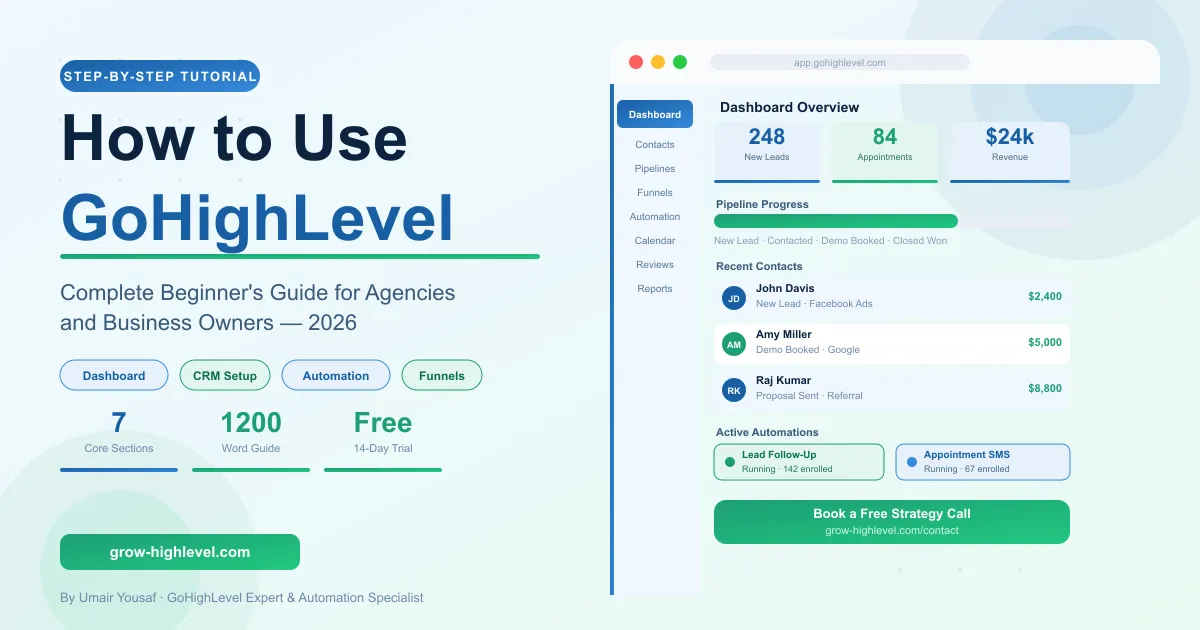
How to Use GoHighLevel: Complete Beginner's Tutorial (2026)
So you have signed up for GoHighLevel — or you are thinking about it — and now you are wondering: in which do I even start? Do not worry. Every agency owner who uses GHL today felt the same way in the beginning. The platform is powerful, but once you understand the basics, everything starts to click.
In this tutorial, I am going to walk you through exactly how to use GoHighLevel from scratch. We will cover the dashboard, contacts, pipelines, funnels, and automation — step by step, in plain English.
If you are not sure what GoHighLevel is yet, read this first: What is GoHighLevel? Complete 2026 Guide for Agencies
Let’s begin.
Step 1 — Create Your GoHighLevel Account
The first thing you need to do after signing up is set up your account properly. This takes about 20–30 minutes and it sets the foundation for everything else.
Open “Settings” from the left sidebar and complete the following details:
Business Name and Logo — This appears on your client-facing pages and emails.
Time Zone — Set this correctly. Your automations and calendar bookings depend on it.
Phone Number — Connect a Twilio or LeadConnector number for SMS.
Email Integration — Connect your email sending domain for better deliverability.
Custom Domain — Connect your domain so your funnels and pages use your own URL.
Once these are done, you are ready to start building.
Pro Tip: If the setup feels overwhelming, our team at Grow HighLevel handles full account setup done-for-you. Visit our Services page to see how we are abale to help.
Step 2 — Understand the GoHighLevel Dashboard
When you log into GoHighLevel, the first thing you see is the Dashboard. Think of it as the control center for your business.
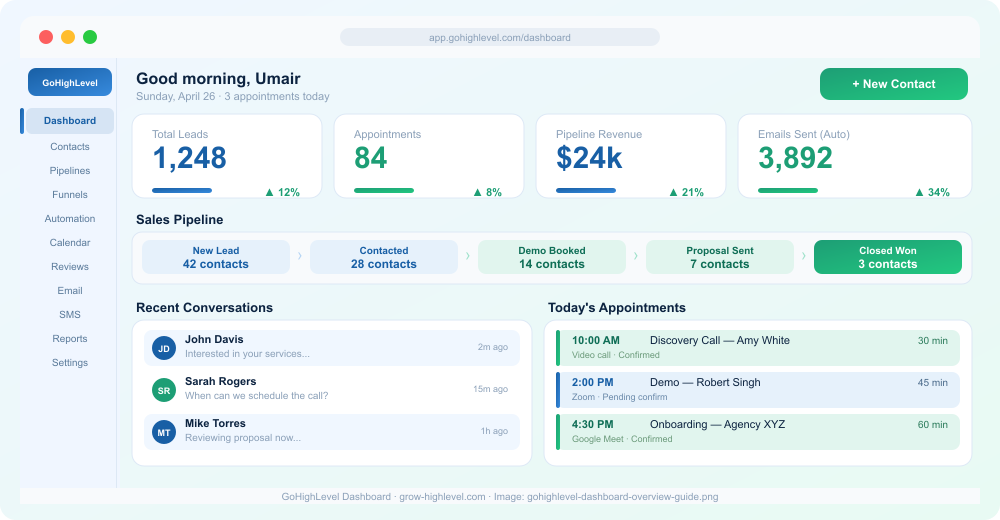
Here is what every phase indicates you:
Opportunities — How many leads are currently in your pipeline and their total value.
Conversion Rate — What percentage of leads are closing into paying clients.
Revenue — Monthly and total closed revenue from your pipeline.
Appointments — Upcoming booked calls from your calendar.
On the left sidebar, you will find the main navigation. The most important sections you will use every day are Contacts, Pipelines, Automation, Funnels, and Conversations.
Spend 10 minutes clicking through each section before building anything. Just exploring the interface will save you a lot of confusion later.
Step 3 — Add Contacts and Manage Your CRM
Your contacts are the people who come into your system as leads. GoHighLevel stores every contact with their name, email, phone, source, tags, and conversation history.
To add a contact manually: Go to Contacts → Click the green "Add Contact" button → Fill in their details → Save.
To import contacts from a spreadsheet: Go to Contacts → Click "Import" → Upload your CSV file → Match the columns → Import.
Once a contact is in your system, you can see every interaction — emails sent, SMS received, calls made, Pages visited, and notes from your team. This gives you a complete picture of every lead without jumping between tools.
You can also tag contacts to group them. For example, you might tag leads as "Facebook Lead," "Referral," or "Hot Prospect" — and trigger different automations based on those tags.
Step 4 — Build Your First Sales Pipeline
A pipeline in GoHighLevel is a visual board that shows where each of your leads is in your sales process. Think of it like a Kanban board where each column is a stage.
Go to Pipelines → Click "Add Pipeline" → Name it (e.g., "Agency Sales Pipeline").
Now add your stages. A simple starting pipeline looks like this:
New Lead → Contacted → Demo Booked → Proposal Sent → Closed Won → Closed Lost
Every time a lead moves forward, drag their card to the next stage. You can also set up automations to move leads automatically based on their actions — for example, if they book a call, They automatically move to "Demo Booked."
Your pipeline is where you will spend the most time every morning. It gives you a clear picture of where your revenue is coming from and what actions need to happen next.
Want to learn how to connect your pipeline to a full funnel? Read our detailed guide:
GoHighLevel Funnel Setup: Complete Step-by-Step Guide for Agencies (2026)
Step 5 — Set Up Automation Workflows
This is where GoHighLevel becomes incredibly powerful. Automation workflows let you send emails, SMS messages, and take actions automatically — based on what your leads do.
Go to Automation → Click "Create Workflow" → Start from scratch or choose a template.
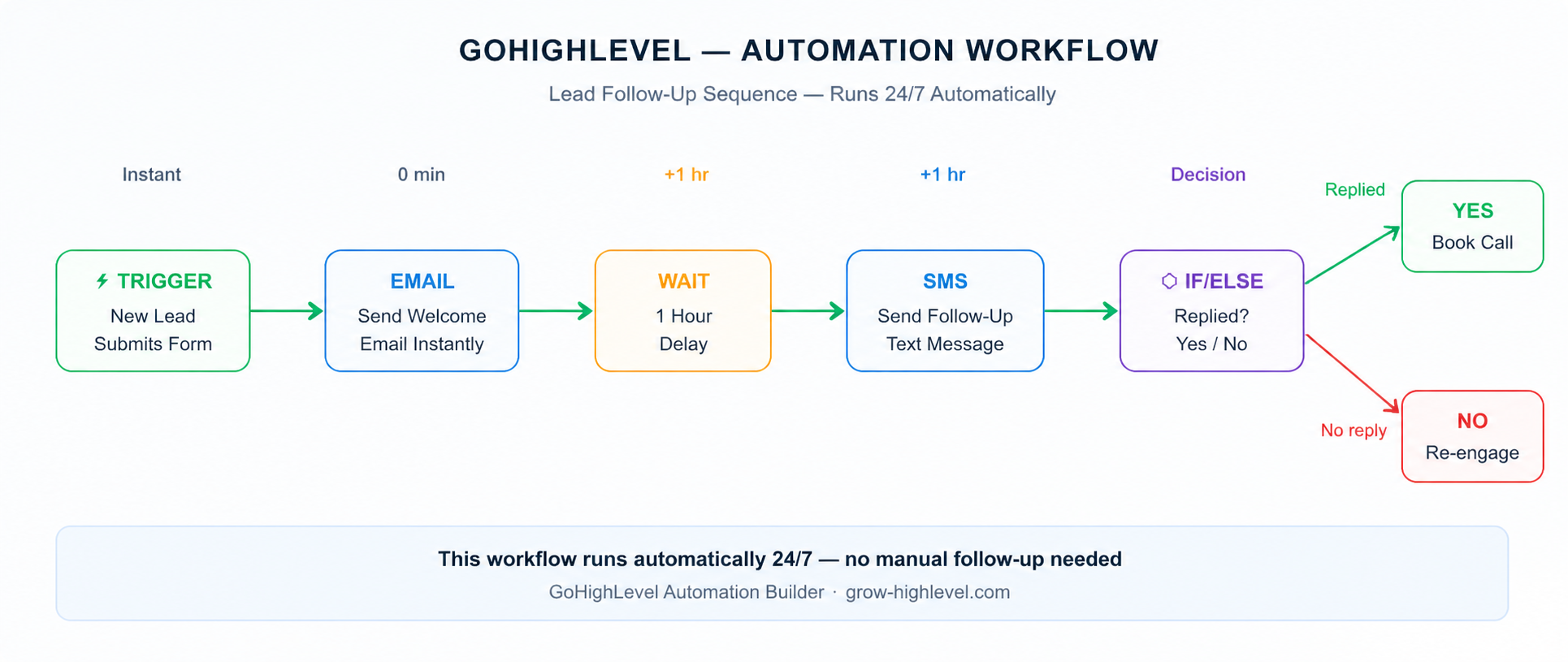
Here is an example of a simple lead follow-up automation:
Trigger — New lead submits your opt-in form
Action — Send a welcome email immediately
Wait — Delay for 1 hour
Action — Send an SMS follow-up message
If/Else — Check whether they replied or not. If yes, move to "Contacted" stage. If no, wait 24 hours and send another email.
This entire sequence runs on autopilot, 24 hours a day, 7 days a week. You never have to manually follow up with a new lead again.
Building automations does take some practice. Start simple with a basic email + SMS sequence, then add more steps as you get comfortable.
Step 6 — Set Up Your Calendar for Bookings
GoHighLevel has a built-in calendar system that connects directly to your pipeline and automations.
Go to Calendars → Create a new calendar → Set your availability, meeting duration, buffer time, and confirmation messages.
Once your calendar is live, you can embed the booking link on your funnel, send it in your SMS automation, or send it directly to potential clients. When someone books, they automatically get a confirmation email and reminder SMS — both sent by GoHighLevel without you doing anything manually.
This replaces Calendly and any other third-party booking tool you might be using.
Step 7 — Use Sub-Accounts for Multiple Clients (Agencies)
If you are using GoHighLevel as an agency, one of its biggest advantages is sub-accounts. Each client gets their own sub-account — a completely separate GHL environment with their own contacts, pipelines, funnels, and automations.
Go to your Agency Dashboard → Click "Add Location" → Fill in your client's business details.
From your agency dashboard, you can switch between client accounts with one click. This means you manage 10, 20, or 50 clients all from a single GoHighLevel login.
You can also create Snapshots — pre-built templates of funnels, automations, and pipelines that you can instantly deploy into any new client account. This is a huge time saver as you scale.
Is GoHighLevel Difficult to Learn?
Honestly — yes, there's a getting to know curve. Most people take 2–4 weeks to feel fully comfortable navigating GHL and building workflows confidently. But the time you invest in learning it pays off massively in saved tools, saved time, and more closed clients.
If you want to skip the trial and error, the fastest path is to work with someone who Already is aware of the platform interior and out.
At Grow HighLevel, we offer done-for-you GoHighLevel setup and automation services for agencies and business owners. Whether you need a full account build, funnel setup, or automation workflows created, our team handles everything for you.
Book a Free Strategy Call today
Final Thoughts
GoHighLevel is one of the most powerful platforms available for marketing agencies and business owners today. The key is to start simple — set up your account, add your contacts, build a basic pipeline, and create one automation workflow. Once you have those working, add more complexity step by step.
Remember: you do n longer must discern all of it out alone. If you want an experienced team to set everything up the right way from day one, we are here to help.
Contact us or visit grow-highlevel.com to get started.
© 2026 Grow HighLevel. Not affiliated with GoHighLevel™ software.
