GoHighLevel Login: How to Log In, Fix Issues & Manage Account Access (2026)
If you are new to GoHighLevel or setting up access for a team member, the login process is straightforward once you understand the different entry points the platform offers. If you are experiencing a login issue — a forgotten password, a 2FA problem, or a white-label portal that is not loading — most problems have a quick fix that does not require a support ticket.
This guide covers everything related to the GoHighLevel login experience — the standard web login, the mobile app, white-label portal access, sub-account switching, security settings, and the most common login issues US agencies encounter along with how to resolve them quickly.
Where to Log In to GoHighLevel
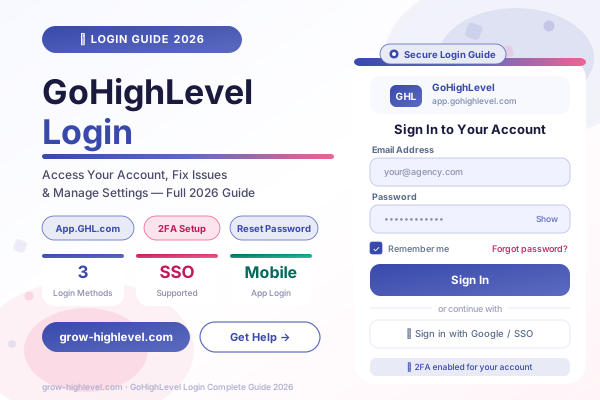
The standard GoHighLevel login page is located at app.gohighlevel.com.
This is the primary access point for all GoHighLevel users — agency owners, team members, and clients who have been granted access to a sub-account. If you are trying to log in and are not sure where to go, start here.
If your agency has set up a white-label GoHighLevel portal under a custom domain, your clients will have a different login URL — typically something like app.youragency.com — and they should use that URL rather than the standard GoHighLevel address. We will cover white-label login in detail later in this guide.
For a complete overview of the GoHighLevel platform before exploring the login settings, see our GoHighLevel pricing plans guide to understand which plan gives access to which features.
How to Log In to GoHighLevel: Step by Step
The GoHighLevel log in process is simple and works consistently across all modern browsers on desktop and laptop devices.
Step 1: Go to app.gohighlevel.com
Step 2: Enter your email address — the one you used when creating your GoHighLevel account or the one your agency used to create your user profile
Step 3: Enter your password
Step 4: If two-factor authentication (2FA) is enabled on your account, you will be prompted to enter a verification code. This code is sent to your registered email address or generated by an authenticator app depending on how your 2FA was configured
Step 5: You are now inside your GoHighLevel dashboard
If you are an agency owner, you will land on your agency-level dashboard where you can see all your sub-accounts. If you are a team member or a client user, you may land directly inside a specific sub-account depending on your assigned permissions.
4 Ways to Log In to GoHighLevel
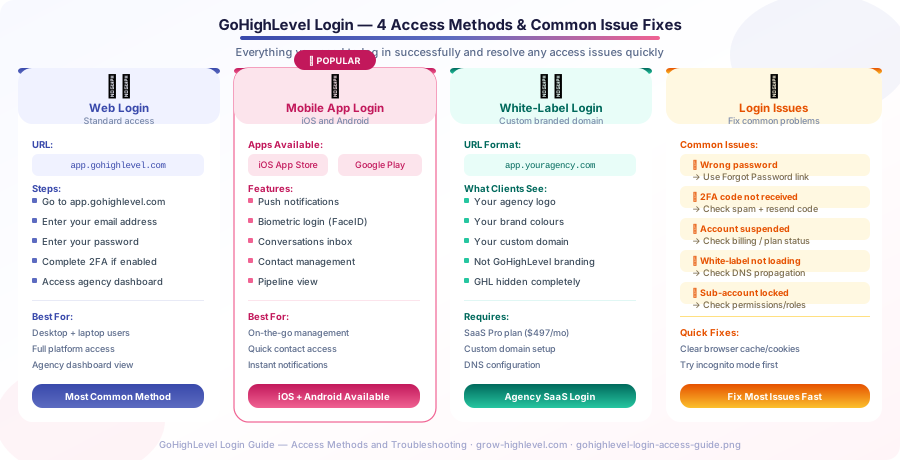
GoHighLevel offers four distinct login methods depending on your role, device, and account configuration.
1. Web Browser Login (Standard)
The web browser login at app.gohighlevel.com is the most commonly used access method. It works on all modern browsers including Chrome, Firefox, Safari, and Edge.
The web dashboard gives you access to the complete GoHighLevel platform — agency settings, all sub-accounts, automation builders, funnel editors, conversation inbox, CRM pipelines, and reporting. For any task that requires building, configuring, or managing the platform, the web browser login is the right choice.
GoHighLevel recommends Chrome for the best compatibility, but the platform functions correctly on all major browsers. If you experience display issues, clearing your browser cache is the first step before investigating other causes.
2. Mobile App Login
GoHighLevel has a native mobile app available for both iOS (App Store) and Android (Google Play). The app allows you to log in to your GoHighLevel account from your phone and manage conversations, contacts, and calendar appointments on the move.
The mobile app login uses the same credentials as the web login. Once logged in, you can enable biometric authentication — Face ID on iPhone or fingerprint recognition on Android — for faster future logins without typing your password.
The mobile app is particularly useful for staying on top of incoming leads and conversations without needing a laptop. Push notifications alert you when a new lead submits a form, when a contact sends a message, or when an appointment is booked — allowing you to respond quickly regardless of where you are.
The mobile app does not provide the full feature set of the web dashboard. You cannot build funnels or automation workflows from the app, but for day-to-day contact management and communication, it covers the essentials well.
3. White-Label Portal Login
If you are operating as an agency on the SaaS Pro plan, your clients do not log in through the standard GoHighLevel URL. They access the platform through your branded white-label portal, which runs on your custom domain with your agency's logo, colours, and branding throughout.
Your clients receive a login URL matching your custom domain — such as app.youragency.com — along with their email and a temporary password. From the client's perspective, they are logging into your proprietary software platform. GoHighLevel is completely hidden.
If you have not yet configured your white-label portal, our GoHighLevel white label guide covers the full setup process including domain configuration, branding, and client access provisioning.
4. Sub-Account User Login
Agency team members and client users who are added to specific sub-accounts use the same GoHighLevel login URL — app.gohighlevel.com — but land inside their assigned sub-account rather than the agency dashboard.
When you create a user profile inside a sub-account and assign them the appropriate role, GoHighLevel sends them an invitation email with a link to set their password. After setting their password, they can log in using the standard URL and will automatically be taken to their assigned sub-account.
Sub-account users can be assigned different permission levels — admin, user, or custom roles — that control which features they can access inside their account. This is important for agencies that want to give clients visibility into their dashboard without allowing them to modify settings or access billing information.
Setting Up Two-Factor Authentication (2FA)
Two-factor authentication adds a second verification step to your GoHighLevel account login. After entering your password, you are required to confirm your identity using a code sent to your email or generated by an authenticator app. This prevents unauthorised access even if your password is compromised.
To enable 2FA on your GoHighLevel account, go to your profile settings in the top right corner → Security → Two-Factor Authentication → Enable.
For agencies managing multiple client accounts, enforcing 2FA on all team member profiles is a recommended security practice. It is particularly important for agency-level accounts that have access to all client sub-accounts, where a single compromised login could expose every client's data.
If your team members are finding the 2FA code slow to arrive via email, switching to an authenticator app such as Google Authenticator or Authy generates codes instantly without depending on email delivery.
GoHighLevel Login Not Working: Common Issues and Fixes
Login problems fall into a small number of predictable categories. Here is how to resolve each one quickly.
Wrong Password or Email
This is the most common cause of a failed GoHighLevel login. Double check that you are entering the correct email address — the one associated with your GoHighLevel account — and that your password does not have extra spaces or capitalisation errors.
If you cannot remember your password, click the Forgot Password link on the login page. GoHighLevel will send a password reset email to your registered address. Follow the link in that email to set a new password and log in again.
If the reset email does not arrive within a few minutes, check your spam or junk folder. GoHighLevel's emails occasionally get filtered by aggressive spam rules, particularly on newer email accounts.
Two-Factor Authentication Code Not Received
If you have 2FA enabled and are not receiving the verification code, first check that the email address associated with your account is active and accessible. Then check spam and junk folders.
If you are using an authenticator app and the code is not working, the most common cause is a time synchronisation issue between the app and the GoHighLevel server. Open your authenticator app settings and look for a time sync or account sync option. Once synced, the codes generated should match correctly.
If you are completely locked out of your account due to 2FA, contact GoHighLevel support through their official support channel to verify your identity and regain access.
Account Suspended or Not Loading
If your account is not loading after login, or you are seeing a suspension notice, the most common cause is a lapsed payment. Check that your credit card on file has not expired and that your GoHighLevel subscription is current.
If your payment is up to date and the account is still not loading, try logging out completely, clearing your browser cache and cookies, and logging in again in an incognito or private browser window. This eliminates cached data as a cause before investigating further.
White-Label Portal Not Loading
If your white-label login URL is not loading for clients, the first thing to check is DNS propagation. If you recently changed your domain settings, DNS changes can take up to 48 hours to propagate fully depending on your domain registrar and DNS provider.
You can check DNS propagation status using a tool like whatsmydns.net by entering your custom domain and checking whether it is pointing to GoHighLevel's servers correctly. If the DNS is still propagating, advise clients to use the standard GoHighLevel URL temporarily while the custom domain finishes resolving.
For more detailed guidance on setting up sub-accounts, user roles, and agency dashboard access, see our complete GoHighLevel agency setup guide.
Managing Multiple Account Access
Many US agencies have multiple GoHighLevel accounts — their own agency account and potentially sub-accounts for each client. Switching between accounts inside GoHighLevel is handled from the agency dashboard rather than requiring a separate login for each one.
From your agency dashboard, you can switch into any client sub-account by clicking the location name in your account list. You remain logged in under your agency credentials and simply navigate between sub-account environments without re-authenticating each time.
If you manage multiple agency-level accounts — for example, if you are a consultant working with two separate agencies on GoHighLevel — you will need separate login credentials for each agency account. Consider using a password manager to keep these credentials organised and secure.
Securing Your GoHighLevel Account
Beyond 2FA, there are a few additional practices that keep your GoHighLevel account secure.
Use a strong, unique password that is not shared with any other service. A password manager makes this practical without requiring you to memorise complex passwords.
Review your connected team member accounts periodically. Remove access for any team members who are no longer working with your agency, and audit permission levels to ensure no one has more access than their role requires.
If you are on the SaaS Pro plan, configure your white-label login portal with SSL — which GoHighLevel handles automatically for connected custom domains — to ensure your clients' login sessions are encrypted.
Getting Help with Your GoHighLevel Login or Setup
If you are unable to resolve a login issue through the steps in this guide, our team at Grow HighLevel can help. We offer GoHighLevel setup services that include full account configuration, user access setup, and 2FA implementation.
You can also hire a GoHighLevel expert from our team for hands-on account troubleshooting or setup assistance, or book a free strategy call if you are setting up a new agency account and want guidance on the right configuration from the start.
Related Articles:
GoHighLevel Agency Setup: Complete Step-by-Step Guide (2026)
GoHighLevel White Label: Complete Setup Guide for Agencies (2026)
© 2026 Grow HighLevel. Not affiliated with GoHighLevel™.